
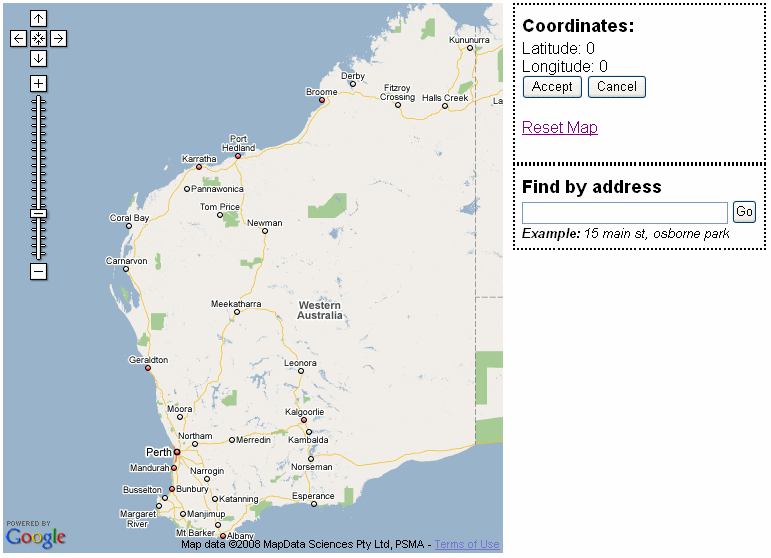
By Address:-
Type in the address or suburb of the project in the "Find by address" dialogue box.
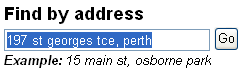
Click "Go", this will bring up the address requested.
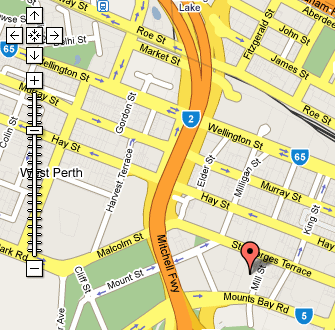
If you are happy with the result, click on the "Accept" button.
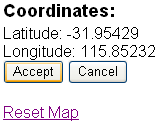
The following confirmation box will appear, asking if you wish to copy these coordinates into the current project.
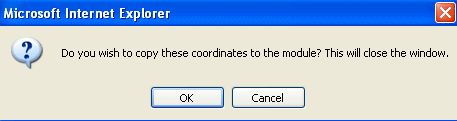
Select "OK" and the selected coordinates will be entered automatically into your current project.
Select "Cancel" and this will take you back to the search field.
If the address cannot be located, an error message will appear as follows:-
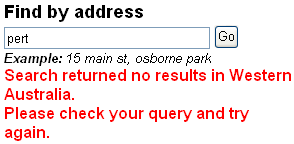
Check your search text and try again.
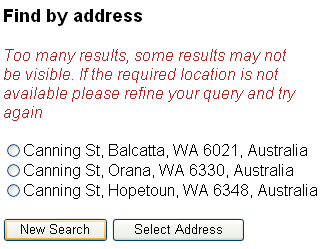
When a less detailed search is performed, there maybe more than one result,
if so you will have a choice to choose from.
Simply choose the correct address, or click on "New Search" if you are not happy
with the choices given.
By Navigation:-
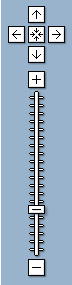
Using the Navigation Controls
You can navigate around the map using the Navigation Controls as follows:-
Arrows: Click on the appropriate arrows to move the view North , South
, East
or West
Click on the to return to your original view
Zoom: Click on to zoom in on the centre of the map, or
to zoom out
Zoom Slider: Drag the zoom slider up or down to zoom in or out incrementally


Using Your Mouse
You can navigate around the map also by using your mouse as follows:-
Note: You will need to zoom in to an acceptable level of detail before you can select an address (by clicking).
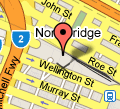
This will then display the coordinates for that address. A flag will also appear to show the address selected.
Scroll: Scroll your mouse forward to zoom in and scroll back to zoom out
Click & Drag: Click & Drag to move around the map
Reset Map: Click on the button to return to your original view
Flag: You can click on the and move around the map to the project's position
Updated 19 June 2013