Projects - Cashflow Adjustment
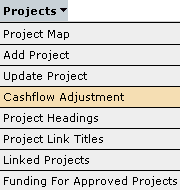
The Cashflow Adjustment screen can be accessed through the menu as shown below.
The Cashflow
Adjustment screen enables the user to select a particular project and submit
an adjustment to the cashflow figures. To select a project that requires a cashflow
adjustment click on the  button from the main screen which will look as follows;

This option
will take you to a project selection box and will allow the user to select
which project requires an adjustment to its cashflow
figures and then by clicking on the  button
will then load the capital works project as a 'Draft Adjustment'.
button
will then load the capital works project as a 'Draft Adjustment'.
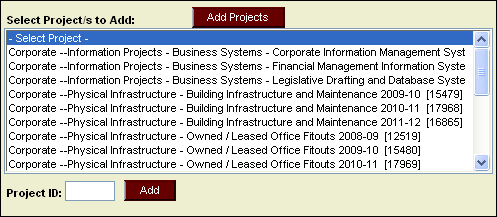
This screen
allows the user to select several project they wish to create a cashflow
adjustment for. To select multiple projects hold down the 'Ctrl' button while
clicking on project names with the mouse. This will highlight multiple projects
which can all be added to the cashflow adjustment screen by then clicking . You
can also enter in the project id number and click  to
create a draft cashflow adjustment.
to
create a draft cashflow adjustment.
Once created the Draft cashflow adjustment will look as shown.

The Cashflow Adjustment screen is divided into three screens which can be selected from the following menu bar.

The first tab is 'Draft Adjustments' and includes all adjustments saved as 'Draft' while the second tab 'Sought Adjustments' contains all data on adjustments submitted and saved as 'Sought' and the final tab 'Summary of Variances' displays the total variances for each status of cashflow adjustment.
Each project that is added to the Cashflow Adjustment screen will be kept seperate in the table and will display the project heading, title and number, the currently approved cashflow figures - Curr Cfws, a row titled 'Adjs' which will contain the adjustment figures and a 'New Cfws' row which will provide a new yearly total after the adjusted figures have been added to the currently approved figures. Finally there is a 'Note' field for the user to enter supporting information for the adjustment. Each of these components of an adjustment can be seen in the image above.
The 'Adjs' and the 'New Cfws' rows are both data entry rows, however after a user has either entered an adjustment figure or a new cashflow figure the system will then calculate the empty field and enter the appropriate figure automatically. If the system has not calculated a field automatically the user may need to click elsewhere on the screen for the system to pick up the figure that has been entered.
An adjustment
can be saved at any time by clicking on the  button at the top of the screen. This will save the adjustment but will not
migrate it to the next status.
button at the top of the screen. This will save the adjustment but will not
migrate it to the next status.
To migrate an adjustment to 'Sought' status the user needs to;
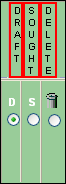
1. Click on the required status in the status selection box on the right hand side of the adjustment table, so for migrating an adjustment to 'Sought' click in the 'Sought' column;
2. Click the
 button
and the adjustment will be moved from the 'Draft Adjustments' tab to the 'Sought
Adjustments' tab which are selected at the top of the screen.
button
and the adjustment will be moved from the 'Draft Adjustments' tab to the 'Sought
Adjustments' tab which are selected at the top of the screen.
Once an adjustment has been migrated to the 'Sought Adjustments' tab by an agency the user will no longer have access other then to view the adjustment.
If the user
would like to delete an adjustment this can by done by selecting the 'Delete'
column from the status selection box and then clicking on .
The user should note that unlike the Adjustment Tracking Module which maintains
a copy of deleted adjustments, any adjustment that is deleted from the IMM
cannot
be retrieved.
WHAT IF
The user is able
to use the status selection box to modify the status of the adjustment without
actually migrating the adjustment to the next status. i.e By carrying out step
one of migrating an adjustment to Sought the user is temporarily marking the
Draft adjustment as Sought (i.e. it does not become permanently Sought until
the user clicks the button).
This ability to use the 'status selection box' to create a 'what if' scenario will allow the user to see what effect an adjustment will have if it was actually submitted from the 'Draft Adjustments' screen to the 'Sought Adjustments' screen or back again.
The Cashflow Adjustment reports will be able to display agency capital works cashflow figures while taking into account cashflow adjustments that are in the 'Draft Adjustments' screen or the 'Sought Adjustments' screen but will also be capable of running reports based on how cashflow adjustments are marked in the status selection box so that a user can run a reports based on a 'what if' scenario without actually having to submit an adjustment to Treasury in order to run a particular report.
A cashflow adjustment that is in the 'Draft Adjustment' screen can be labelled through the status selection box as Deleted, Draft or Sought. A cashflow adjustment that has been submitted to the 'Sought Adjustment' screen can be labelled through the status selection box as Draft, Sought, Approved or Deleted.
At the top
of the screen on the right hand side is the  button.
By clicking on this button the system will organise each cashflow adjustment
in the 'Draft Adjustments' and the 'Sought Adjustments' screens so that cashflow
adjustments that have been labelled the same in the 'status selection box'
will be listed together. If for example a user is viewing the 'Draft Adjustment's'
screen and has labelled five cashflow adjustments as 'draft' in the 'status
selection box' and three as 'sought' in the 'status selection box'. Clicking
on the button
will list the five cashflow adjustments marked as 'Draft' together and the
three cashflow adjustments marked as 'Sought' together.
button.
By clicking on this button the system will organise each cashflow adjustment
in the 'Draft Adjustments' and the 'Sought Adjustments' screens so that cashflow
adjustments that have been labelled the same in the 'status selection box'
will be listed together. If for example a user is viewing the 'Draft Adjustment's'
screen and has labelled five cashflow adjustments as 'draft' in the 'status
selection box' and three as 'sought' in the 'status selection box'. Clicking
on the button
will list the five cashflow adjustments marked as 'Draft' together and the
three cashflow adjustments marked as 'Sought' together.
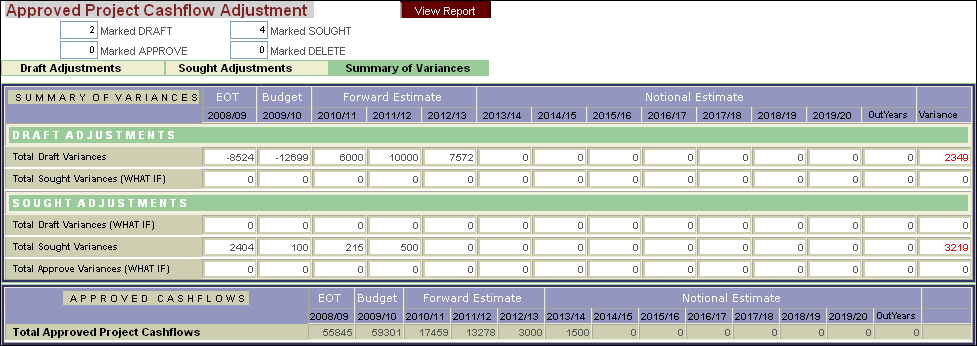
The final tab in the cashflow adjustments screen is the 'Summary of Variances' tab. This tab contains a table summarising all of the cashflow adjustment figures that have been entered by the user and breaks them up according to the 'Draft Adjustment' and 'Sought Adjustment' screens as well as listing each cashflow adjustment within the two screens by how they are labelled in the status selection box. This screen is shown below.
Updated 19 June 2013